Devices
The “Devices” menu item contains 4 submenus:
- Network devices;
- Endpoints;
- Groups;
- Locations.

Submenu “Network devices”
Info tab
All network devices are listed on this tab. Network devices can be added, edited, copied, deleted. Types, locations, groups, credentials can be assigned to network devices. Also you can search for network devices using filters.
When you add, edit, and copy a network device, you can test its availability via SNMP protocol.
Each network device must have a unique IP address.

Description of the table columns (you can select the columns by clicking the gear icon):
device ip address – ip address of a network device;
host – hostname of a network device, obtained by using reverse DNS query;
sysName – snmp sysName;
sysObjectId – snmp sysObjectId;
sysDescr – snmp sysDescr;
uptime – the period of time since the device was last switched on;
type – device type.
Note
The following types of devices are currently available:
- CISCO – Cisco network devices;
- HP2900 – Hewlett Packard 2900 series switches;
- HP7500 – Hewlett Packard 7500 series switches, without support of collection of IPv6 neighbor tables;
- GENERAL – a simple network device that will be polled via SNMP only to collect the following SNMP parameters: sysName, sysObjectId, sysDescr, uptime.
Note
If your network device is not supported, read Add unsupported network device
groups – groups that network device is member of;
location – location of a network device;
city – a city of a network device location;
address – an address of a network device location;
floor – a floor of a network device location;
room – a room of a network device location;
rack – a rack, where a network device is located;
rack unit – a rack unit where a network device is located;
responsible person – a responsible person for a network device;
phone – a phone number of a responsible person.
inventory number;
description.
When adding a network device, you must specify:
- Ip address;
- Port;
- Device type;
- Snmp version;
- Snmp community (only for Snmp V1 and V2);
- Snmp security Name (only for Snmp V3);
- Snmp security level (only for Snmp V3);
- Snmp auth protocol (only for Snmp security level AUTH_NO_PRIV, AUTH_PRIV);
- Auth key (only for Snmp security level AUTH_NO_PRIV, AUTH_PRIV);
- Snmp priv protocol (only for Snmp security level AUTH_PRIV);
- Priv key (only for Snmp security level AUTH_PRIV);
- Inventory number (optional);
- Description (optional);
- Groups (optional);
- Location (optional);
- Floor (optional);
- Room (optional);
- Rack (optional);
- Rack unit (optional);
- Extra info (optional).
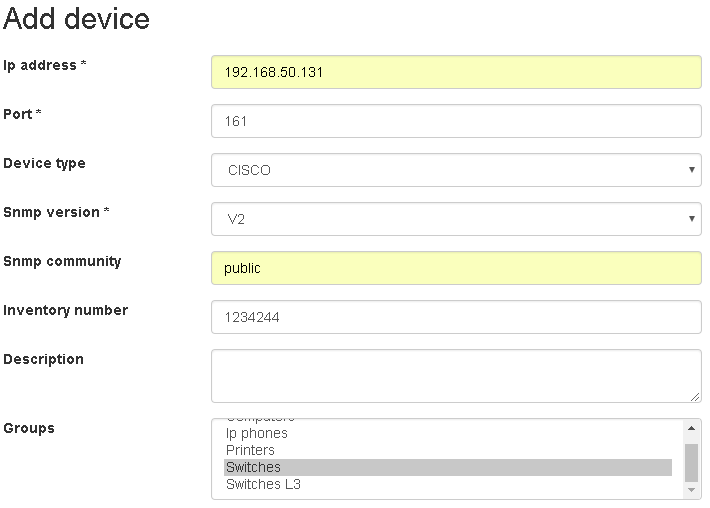

Note
It is possible to test the availability of a device via snmp. To do this, when adding a device, you must click the button “test snmp”.
Editing and copying a network device is similar to adding it.


Note
Copying can be used if you have a large number of devices with the same SNMP settings, you only need to change the IP address of the new device.
Assigning a type to network devices: uou can select multiple network devices at once and assign a type to them.

Assigning credentials to network devices: you can select multiple network devices at once and assign them SNMP credentials.

Assigning groups to network devices: You can select multiple network devices at once and add them to groups.

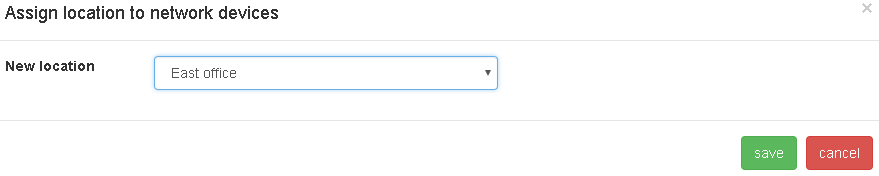
Assigning a location to network devices: you can select multiple network devices at once and assign a location to them.
Deleting network devices: You can select multiple network devices at once and delete them. This will delete all records associated with these devices from the network report, port commutation, Mac, Arp, neighbor, Vlan, port tables.

By clicking on the IP address, host, SysName of network device you can go to the tab with detailed information about the network device.


From the detailed information tab, the following tabs are available: mac, arp, neighbor tables, port information and vlan information for this network device.
Mac tables tab
This tab contains mac tables of network devices.
Note
Mac tables are updated according to the “Reports update period” option in global settings.
Table columns:
- device ip address;
- hostname;
- sysName;
- mac address;
- vlan;
- vlan name;
- port;
- trunk status.

ARP tables tab
This tab contains ARP tables of network devices.
Note
ARP tables are updated according to the “Reports update period” option in Global settings.
Table columns:
- device ip address;
- hostname;
- sysName;
- ip address – ipv4 address;
- mac address;
- vlan;
- vlan name;
- port.

Neighbor tables tab
This tab contains neighbors tables of network devices.
Note
Neighbor tables are updated according to the “Reports update period” option in the global settings.
Table columns:
- device ip address;
- hostname;
- sysName;
- ip address – ipv6 address;
- mac address;
- vlan;
- vlan name;
- port.

Ports tab
This tab contains information about ports of the network devices.
Note
The ports information are updated according to the “Network devices information update period” option in Global settings.
Table columns:
- device ip address;
- hostname;
- sysName;
- port;
- administrative status;
- operational status;
- trunk status;
- in errors;
- out errors;
- vlan;
- native vlan.
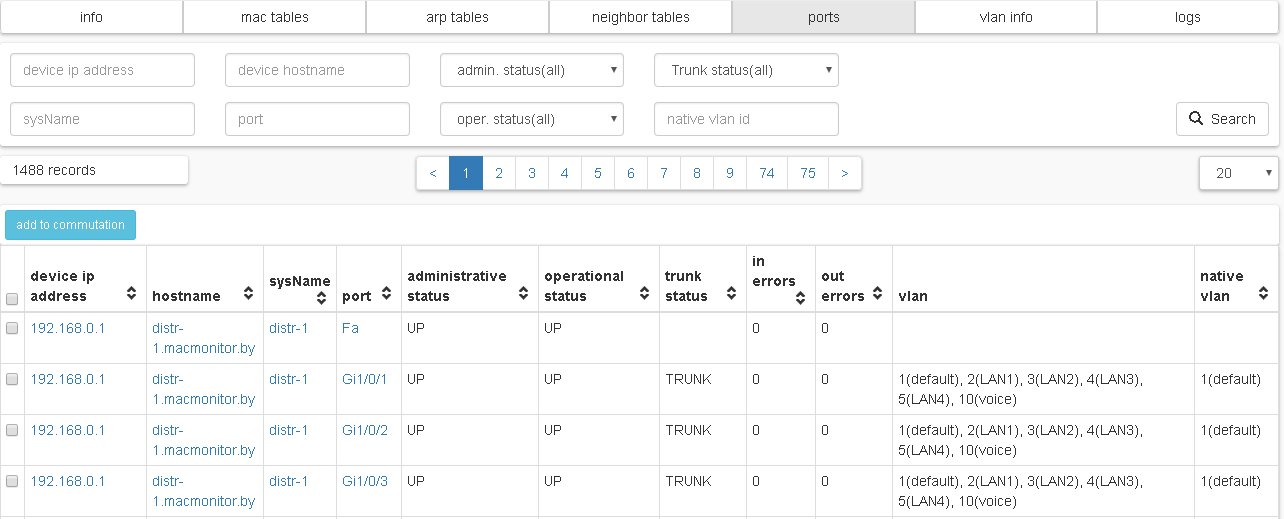
Note
On the tab, you can add ports to commutation. It will be necessary to specify port monitor status: MONITOR_NOT_TRUNK – to generate a network report for this port, if it is not TRUNK, MONITOR – to generate a network report for this port, NOT_MONITOR – do not generate a network report for this port.All ports with trunk status NOT_TRUNK and having connected endpoints will be added to commutation automatically according to the “Reports update period” option in the global settings. The network report will also be generated.
Vlan info tab
This tab contains information about VLANs of the network devices and ports that belong to these VLANs.
Note
The information on this tab is updated according to the “Network devices information update period” option in Global settings.
Table columns:
- device ip address;
- hostname;
- sysName;
- vlan;
- vlan name;
- ports.

Logs tab
This tab contains network devices availability/unavailability records.
Note
The information on this tab is updated according to the “Network devices information update period” option in Global settings.
Table columns:
- device ip address;
- hostname;
- sysName;
- groups;
- location;
- message;
- time.

Submenu “Endpoints”
Endpoints are computers, printers, IP phones, and so on.
The identification of endpoints occurs using a MAC address.
Info tab
This tab contains information about all the endpoints known to the program. Endpoints can be added, edited, deleted, and assigned to groups. You can export and import data in CSV format. The endpoints will be added and updated automatically after the network devices are polled according to the “Reports update period” option in the Global settings.
Table columns:
- mac address;
- inventory number;
- description;
- groups.

When you manually add a endpoint, you must specify:
- Mac address;
- Inventory number;
- Groups;
- Description.

Editing endpoints is similar to adding.

Export to CSV – saving endpoint to a CSV file.
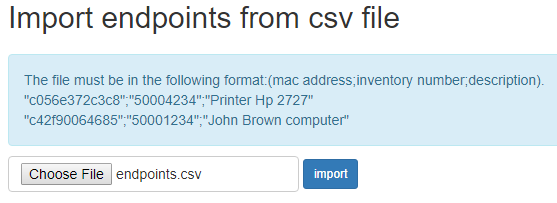
Import from CSV.
Assigning groups to endpoints: You can select multiple endpoints at once and add them to groups.

Delete endpoints : You can select multiple endpoints at once and delete them. This will not delete records from the network report for this endpoint.

By clicking on the MAC address of the endpoints, you can go to the detailed report about this device.
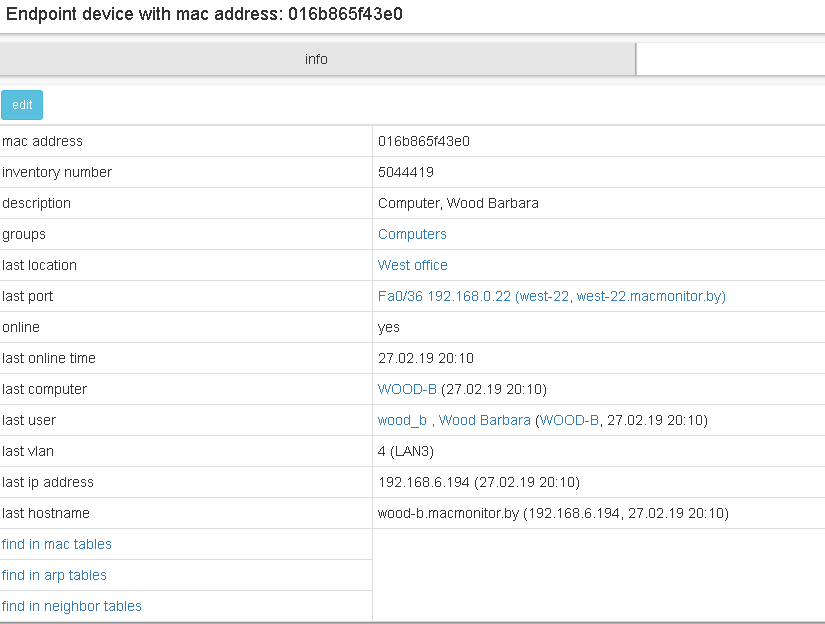
Logs tab
By clicking on the logs you can view the records of when endpoints were available/unavailable/found.
Note
Unavailability refers to the absence of the MAC address of the endpoint on the monitored ports. Availability refers to the presence of the MAC address of the endpoint on the monitored ports.
- A “Found new endpoint” message will be added when the endpoint’s MAC address is first detected on the monitored port of the network device.
- A record with the message “found on network devices” will be added if the endpoint is a member of any group and its MAC address is detected on the monitored port.
- A record with the message “Not found on network devices” will be added if theendpoint is a member of any group and its MAC address is not detected on any monitored port.

Submenu “Groups”
There is possible to add network devices and endpoints to groups. By using groups, you can configure e-mail alerts for users. You can add, edit, and delete groups.

Table columns:
- name;
- description;
- details.
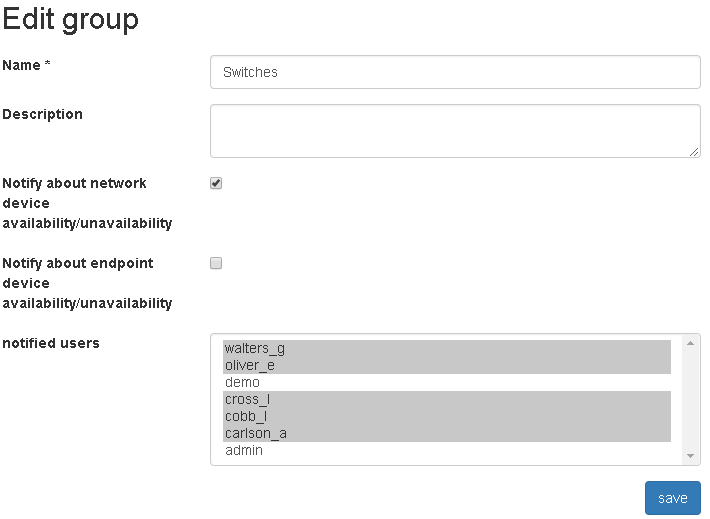
When adding a group, you must specify:
- Name;
- Description (optional);
- Notify about network device availability/unavailability (optional);
- Notify about endpoint device availability/unavailability (optional);
- Notified users (optional).

Editing a group is similar to adding it.
By clicking on the name of the group you can see detailed information about it. Detailed information includes:
- name;
- description;
- network devices(all/online/offline);
- endpoints(all/online/offline)
- Notify about network device availability/unavailability;
- Notify about endpoint device availability/unavailability;
- notified users.

Delete groups: You can select multiple groups at once and delete them. The network devices and endpoints that are members of this group will not be deleted.

Submenu “Locations”
There is support of locations of network devices in the program. You can add, edit, and delete locations.

Table columns:
- name;
- city;
- address;
- responsible person;
- phone;
- extra location info;
- devices all/down.
When adding a location, you must specify:
- Name;
- City (optional);
- Address (optional);
- Responsible person (optional);
- Phone (optional);
- Extra info (optional).

Editing a location is similar to adding it.

Delete locations: You can select several locations at once and delete them. The network devices assigned to this location will not be deleted. They will be assigned to an unknown location.

By clicking on the name of the location you can view detailed information about this location.
