Add network devices
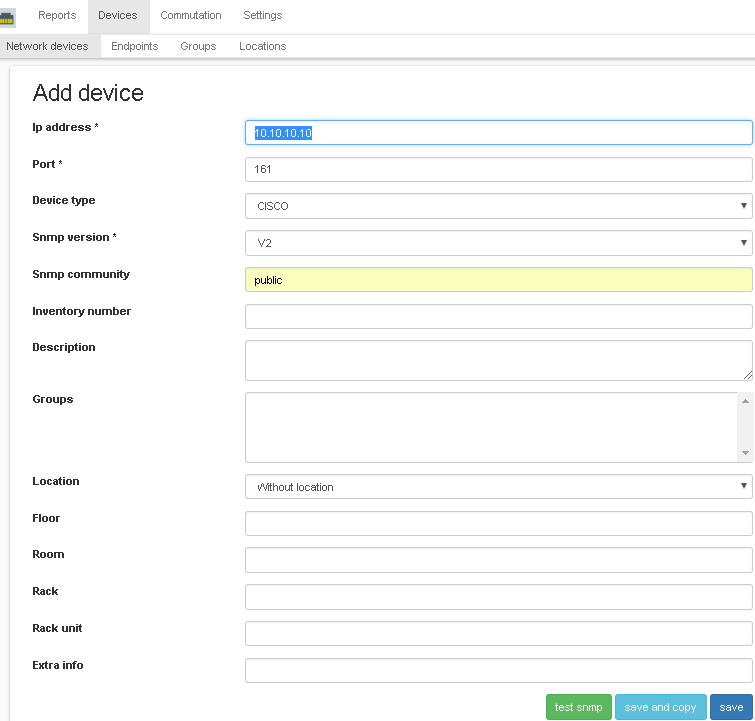
Go to the menu item Devices → Network devices → Add. Enter the snmp credentials and click save.
Note
It is possible to test the availability of a device via snmp. To do this, when adding a device, you must click the button “test snmp”.
- Do point 1 for all your devices.
Note
If devices differ only in ip address, then instead of adding a device, you can copy an existing one by changing the ip address. To do this, when adding a device, click “save and copy”.
- Go to Settings → Global Settings. Set the “Reports update period” option to the desired value (for example, 600 seconds).

Note
After setting the option, every 600 seconds network devices will be polled to get mac, arp, neighbor tables and reports will be generated.
Note
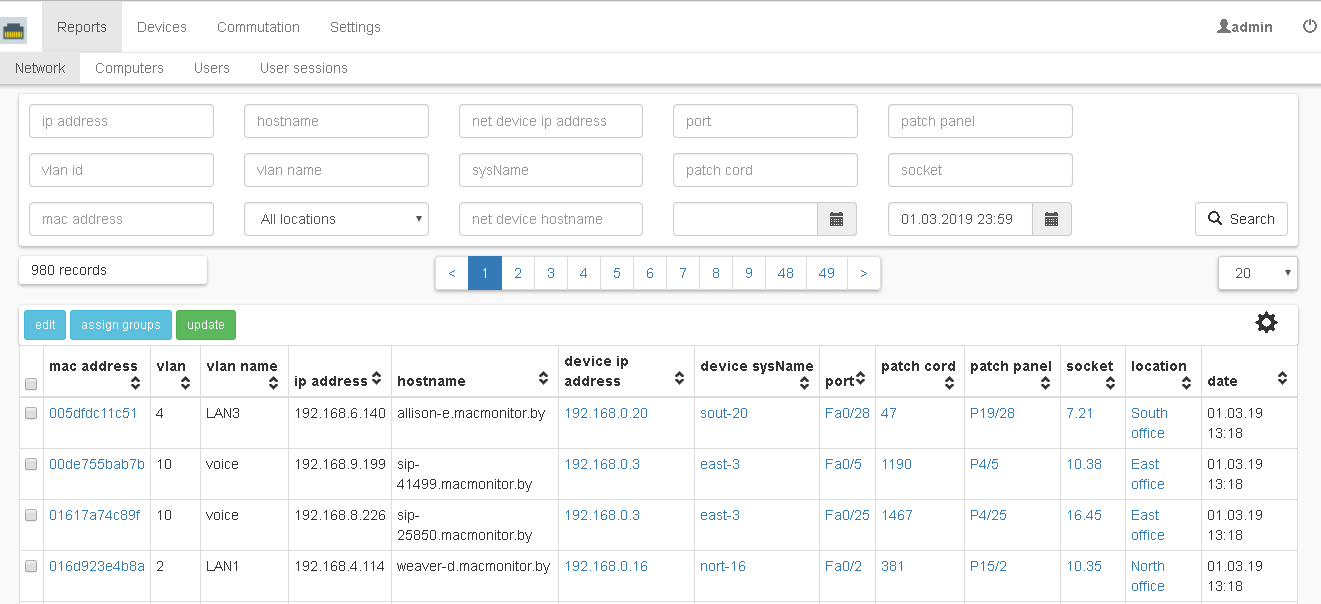
It is possible to update reports manually. To do this, go to the menu item Reports → Network → update.
Note
Please note that by default the network report will display records with mac addresses found only on NOT_TRUNK ports.