Devices
Пункт меню «Устройства» содержит в себе 3 подпункта:
- Network devices;
- Endpoints;
- Группы.

Submenu “Network devices”
Info tab
На этой вкладке приведены все сетевые устройства. Сетевые устройства можно добавлять, редактировать, копировать, удалять, назначать им модель, место, группы, учетные данные. Можно осуществлять поиск по сетевым устройствам, используя фильтры.
When you add, edit, and copy a network device, you can test its availability via SNMP protocol.

Description of the table columns (you can select the columns by clicking the gear icon):
имя - имя сетевого устройства;
device ip address – ip address of a network device;
host – hostname of a network device, obtained by using reverse DNS query;
sysName – snmp sysName;
sysObjectId – snmp sysObjectId;
sysDescr – snmp sysDescr;
uptime – the period of time since the device was last switched on;
модель – модель устройства.
Note
На данный момент доступны следующие модели устройств:
- CISCO – Cisco network devices;
- HP1900/2900 – коммутаторы фирмы Hewlett Packard 1900, 2900 серий;
- HP7500 – Hewlett Packard 7500 series switches, without support of collection of IPv6 neighbor tables;
- DLINK - коммутаторы фирмы D-Link;
- Другое snmp устройство – простое сетевое устройство, которое будет опрошено по протоколу SNMP только для сбора следующих параметров snmp: sysName, sysObjectId, sysDescr, uptime;
- Другое не snmp устройство – простое сетевое устройство, которое не будет опрошиваться по snmp протоколу. Пример: медиаконвертер.
Note
If your network device is not supported, read Add unsupported network device
учетные данные - учетные данные, которые используются при опросе сетевого устройства;
groups – groups that network device is member of;
здание – здание, где размещено сетевое устройство;
населенный пункт – населенный пункт, где размещено сетевое устройство;
адрес – адрес здания, где размещено сетевое устройство;
этаж – этаж, где размещено сетевое устройство;
помещение – помещение, где размещено сетевое устройство;
шкаф или место – шкаф или место, где размещено сетевое устройство.
inventory number;
серийный номер;
description.
When adding a network device, you must specify:
- Имя (опционально, если задан ip адрес);
- Ip адрес (опционально, если задано имя; обязательно, если требуется опрос по snmp);
- Модель;
- Учетные данные;
- Inventory number (optional);
- Серийный номер (опционально);
- Description (optional);
- Groups (optional);
- Здание;
- Этаж;
- Помещение;
- Шкаф или место;
- Положение в шкафу (для шкафа);
- Начальный unit (для шкафа);
- Конечный unit (для шкафа).


Note
It is possible to test the availability of a device via snmp. To do this, when adding a device, you must click the button “test snmp”.
Editing and copying a network device is similar to adding it.


Note
Копирование может быть использовано при наличии большого количества устройств с одинаковыми настройками, необходимо только прописать ip адрес нового устройства и его место расположения.
Назначение модели сетевым устройствам: можно выбрать сразу несколько сетевых устройств и назначить им модель.

Assigning credentials to network devices: you can select multiple network devices at once and assign them SNMP credentials.

Assigning groups to network devices: You can select multiple network devices at once and add them to groups.

Deleting network devices: You can select multiple network devices at once and delete them. This will delete all records associated with these devices from the network report, port commutation, Mac, Arp, neighbor, Vlan, port tables.

Кликнув на имя, ip адрес, хост, sysName сетевого устройства можно перейти на вкладку с детальной информацией о сетевом устройстве.


From the detailed information tab, the following tabs are available: mac, arp, neighbor tables, port information and vlan information for this network device.
Mac tables tab
This tab contains mac tables of network devices.
Note
Mac tables are updated according to the “Reports update period” option in global settings.
Table columns:
- name;
- device ip address;
- hostname;
- sysName;
- mac address;
- vlan;
- vlan name;
- port;
- trunk status.

ARP tables tab
This tab contains ARP tables of network devices.
Note
ARP tables are updated according to the “Reports update period” option in Global settings.
Table columns:
- name;
- device ip address;
- hostname;
- sysName;
- ip address – ipv4 address;
- mac address;
- vlan;
- vlan name;
- port.

Neighbor tables tab
This tab contains neighbors tables of network devices.
Note
Neighbor tables are updated according to the “Reports update period” option in the global settings.
Table columns:
- name;
- device ip address;
- hostname;
- sysName;
- ip address – ipv6 address;
- mac address;
- vlan;
- vlan name;
- port.

Ports tab
This tab contains information about ports of the network devices.
Note
The ports information are updated according to the “Network devices information update period” option in Global settings.
Table columns:
- name;
- device ip address;
- hostname;
- sysName;
- port;
- administrative status;
- operational status;
- trunk status;
- in errors;
- out errors;
- vlan;
- native vlan.

Note
On the tab, you can add ports to commutation. It will be necessary to specify port monitor status: MONITOR_NOT_TRUNK – to generate a network report for this port, if it is not TRUNK, MONITOR – to generate a network report for this port, NOT_MONITOR – do not generate a network report for this port.All ports with trunk status NOT_TRUNK and having connected endpoints will be added to commutation automatically according to the “Reports update period” option in the global settings. The network report will also be generated.
Vlan info tab
This tab contains information about VLANs of the network devices and ports that belong to these VLANs.
Note
The information on this tab is updated according to the “Network devices information update period” option in Global settings.
Table columns:
- name;
- device ip address;
- hostname;
- sysName;
- vlan;
- vlan name;
- ports.

Logs tab
This tab contains network devices availability/unavailability records.
Note
The information on this tab is updated according to the “Network devices information update period” option in Global settings.
Table columns:
- name;
- device ip address;
- hostname;
- sysName;
- inventory number;
- серийный номер;
- groups;
- здание;
- этаж;
- помещение;
- шкаф или место;
- message;
- time.

Submenu “Endpoints”
Endpoints are computers, printers, IP phones, and so on.
Info tab
This tab contains information about all the endpoints known to the program. Endpoints can be added, edited, deleted, and assigned to groups. You can export and import data in CSV format. The endpoints will be added and updated automatically after the network devices are polled according to the “Reports update period” option in the Global settings.
Table columns:
- name;
- mac address;
- inventory number;
- серийный номер;
- description;
- groups.

When you manually add a endpoint, you must specify:
- Имя (опционально, если задан mac адрес);
- Mac адрес (опционально, если задано имя);
- Inventory number (optional);
- Серийный номер (опционально);
- Groups (optional);
- Описание (опционально).

Editing endpoints is similar to adding.

Export to CSV – saving endpoint to a CSV file.
Import from CSV.

Assigning groups to endpoints: You can select multiple endpoints at once and add them to groups.

Delete endpoints : You can select multiple endpoints at once and delete them. This will not delete records from the network report for this endpoint.

Кликнув на имя или mac адрес конечного устройства можно перейти на страницу с информацией об этом устройстве.


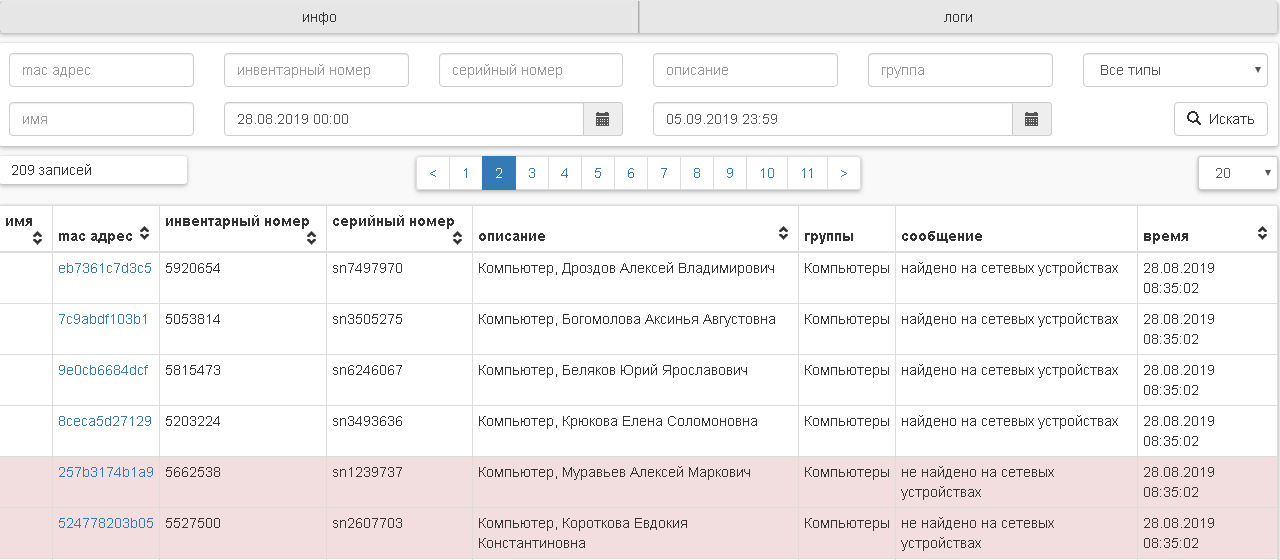
Logs tab
By clicking on the logs you can view the records of when endpoints were available/unavailable/found.
Note
Unavailability refers to the absence of the MAC address of the endpoint on the monitored ports. Availability refers to the presence of the MAC address of the endpoint on the monitored ports.
- A “Found new endpoint” message will be added when the endpoint’s MAC address is first detected on the monitored port of the network device.
- Запись с сообщением «найдено на сетевых устройствах» будет добавлена, если конечное устройство входит в какую-либо группу, с включенной опцией «Записывать в лог и оповещать про доступность/недоступность конечных устройств», и его mac адрес обнаружен на наблюдаемом порту.
- Запись с сообщением «не найдено на сетевых устройствах» будут добавлена, если конечное устройство входит в какую-либо группу, с включенной опцией «Записывать в лог и оповещать про доступность/недоступность конечных устройств», и его mac адрес не обнаружен ни на одном наблюдаемом порту.
Submenu “Groups”
There is possible to add network devices and endpoints to groups. By using groups, you can configure e-mail alerts for users. You can add, edit, and delete groups.

Table columns:
- name;
- description;
- details.
When adding a group, you must specify:
- Name;
- Description (optional);
- Notify about network device availability/unavailability (optional);
- Notify about endpoint device availability/unavailability (optional);
- Notified users (optional).

Editing a group is similar to adding it.

By clicking on the name of the group you can see detailed information about it. Detailed information includes:
- name;
- description;
- network devices(all/online/offline);
- endpoints(all/online/offline)
- Notify about network device availability/unavailability;
- Notify about endpoint device availability/unavailability;
- notified users.

Delete groups: You can select multiple groups at once and delete them. The network devices and endpoints that are members of this group will not be deleted.
