Install on Centos 7
- Update system.
yum update -y
- Disable selinux.
setenforce 0
Edit file /etc/selinux/config:
SELINUX=permissive
- Disable firewalld and clear iptables.
systemctl disable firewalld
systemctl stop firewalld
iptables -X
iptables -X -t nat
iptables -X -t mangle
iptables -X -t raw
iptables -X -t security
ip6tables -X
ip6tables -X -t nat
ip6tables -X -t mangle
ip6tables -X -t raw
ip6tables -X -t security
- Install JRE (Java SE Runtime Environment).
yum install -y java-1.8.0-openjdk.x86_64
- Install mariadb.
yum install -y mariadb-server
- Start mariadb.
systemctl start mariadb.service
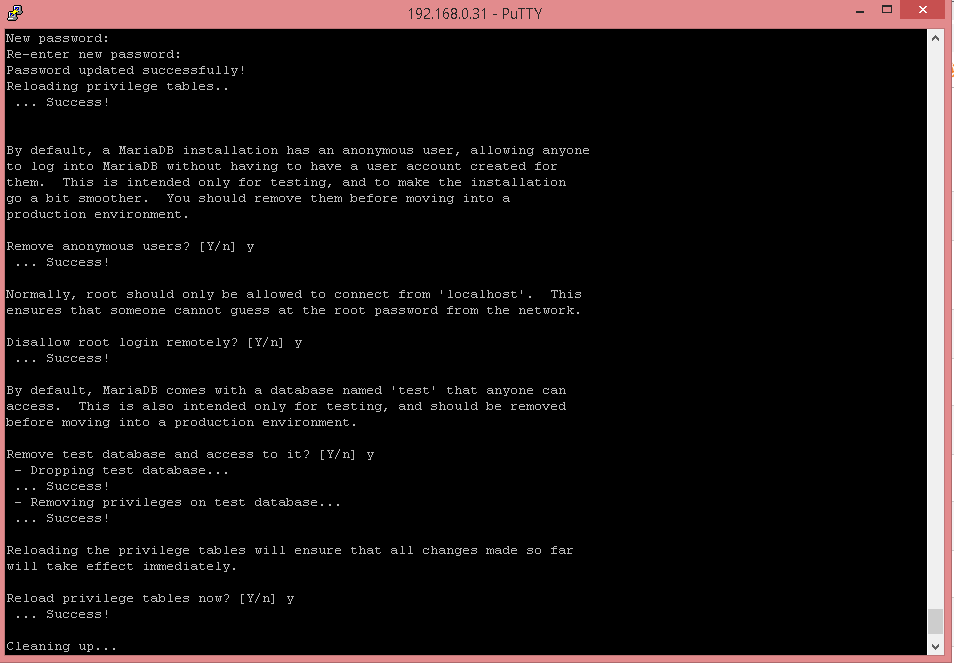
- Set mariadb root password.
mysql_secure_installation
- Start mariadb on boot.
systemctl enable mariadb.service
- Connect to mariadb and create a database and user macmonitor with the password macmonitorpass (replace the password with the one created by you) with all permissions on this database.
mysql -u root -p
CREATE DATABASE macmonitor CHARACTER SET = "latin1" COLLATE ="latin1_swedish_ci";
GRANT ALL ON macmonitor.* TO macmonitor@127.0.0.1 IDENTIFIED BY 'macmonitorpass';
exit
- Install Network MACMonitor package.
rpm -Uvh https://macmonitor.by/files/rpm/network-macmonitor-latest.rpm
- In the settings file /opt/macmonitor/config/custom.properties change the value of the spring.datasource.password parameter (see 9).

- Start program on boot.
systemctl enable macmonitor
- Start program.
systemctl start macmonitor
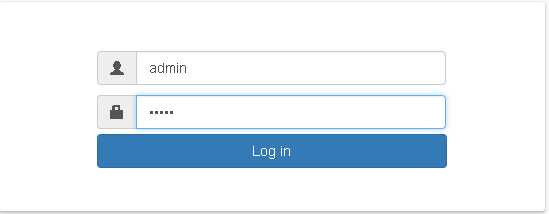
- Wait a few minutes. Log in to the program using link http://<ip address>:8080
User — admin
Password — admin
Note
If for any reason the program has not started, you can view logs in the directory /opt/macmonitor/logs.