Receive email notifications
You can configure receiving notifications about availability/unavailability of network devices and endpoints.
Note
A network device is considered unavailable if it does not respond to snmp requests. An endpoint is considered unavailable if it is not detected on any monitored port (the endpoint’s mac address is not present on any monitored ports).
To configure receiving email notifications, you should:
- Add Device Group: Devices → Groups → Add; choose events which users should be notified about; select users who will receive notifications.

- Add network devices and/or end points to the created group.
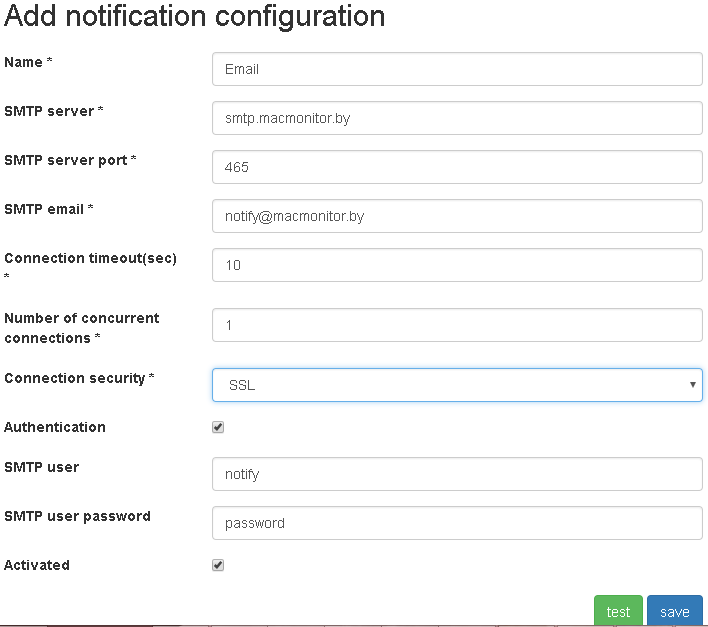
- Add a notificaiton configuration: Settings → Notification configurations → Add.
When adding a notification configuration, you must specify:
- Name
- The name of the notification configuration.
- SMTP server
- Hostname or ip address of the SMTP server.
- SMTP server port
- SMTP server port (25 - for SMTP, 465 - for SMTP SSL/TLS).
- SMTP email
- email recipient
- Connection timeout
- Connection timeout in seconds.
- Number of concurrent connections
- The number of concurrent connections to the smtp server.
- Connection security
- When an encrypted connection is used, there is no check of the validity of the server certificate.
- Authentication
- Authentication (optional field).
- SMTP user
- SMTP user (optional field, only if authentication is enabled).
- SMTP user password
- SMTP user password ( optional field, only if authentication is enabled).
- Activated
- Activated.
Note
Есть возможность послать тестовое письмо (должен существовать хотя бы один пользователь с email). Для этого необходимо нажать кнопку тест при добавлении способа оповещения.
- To users selected in point 2, assign the created notification configuration and fill in the email field to which the notifications will be sent: Settings → Users → Edit.


После проделанных настроек при изменении доступности устройств начнут приходить оповещения.